Hacking Tableau Workbooks with AI: A Quick Experiment in XML Manipulation
I Used AI to Build 24 Tableau Calculations in 2 Minutes (Here's What I Learned)


I was testing out the Power BI MCP server last week and noticed something interesting: it could write directly to Power BI workbooks. That got me thinking… if AI can modify Power BI files, what about Tableau?
I’d created the same time-based calculations probably 200 times in my career across different Tableau dashboards. Year-over-year. Prior year to date. Quarter-to-date. The whole suite. Every single project needs them, and every single time I’m clicking through Tableau’s interface, typing formulas, naming fields, testing, repeat.
What if I could use the same principle I’d seen with Power BI to handle this repetitive stuff in Tableau?
Turns out, you can. And it’s both really cool and has some serious limitations you need to understand.
The Problem (That Every Analyst Knows Too Well)
We all know the drill. You spin up a new dashboard and immediately need:
The basics:
Current Year, Quarter, Month
Year/Quarter/Month-to-Date
The comparison metrics:
Prior Year equivalents
Prior Year-to-Date (for apples-to-apples)
Maybe 2–3 years back for trends
The performance stuff:
Absolute variance
Percentage change
Growth rates
By the time you’re done, you’ve got 20–30 calculated fields. Each one takes a couple minutes to set up, name properly, and test. We’re talking 45–60 minutes of work that honestly feels like busywork.
So I wondered: Can I automate this?
The Insight: Tableau Files Are Just XML
Tableau workbooks (.twb files) are literally just XML documents.
All your data connections, calculations, worksheets, it’s all structured text behind the scenes. Which means you can open them in a text editor and see exactly how Tableau stores everything.
More importantly, it means an AI that understands code and structured data should theoretically be able to read and modify them.
Worth a shot, right?
The Experiment
I decided to test this with Claude AI. Here’s what I did:
Step 1: Start with a Simple Workbook
I grabbed Tableau’s Sample Superstore dataset, it’s public data, which matters a lot (more on that later). Built a basic workbook, saved it as .twb, and changed the extension to .xml.

Step 2: Give Claude a Simple Ask
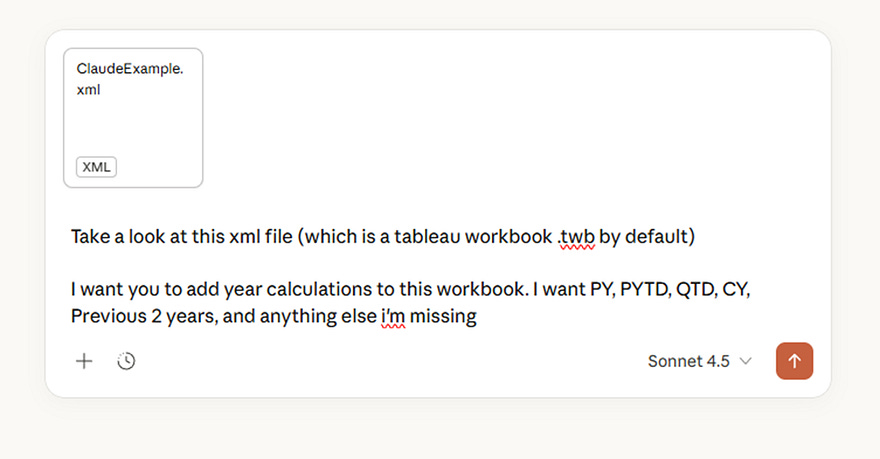
I uploaded the file and just said:
“Add year calculations to this workbook. I want PY, PYTD, QTD, CY, Previous 2 years, and anything else I’m missing.”
No detailed specs. No formula syntax. Just the ask.
Step 3: Let It Work
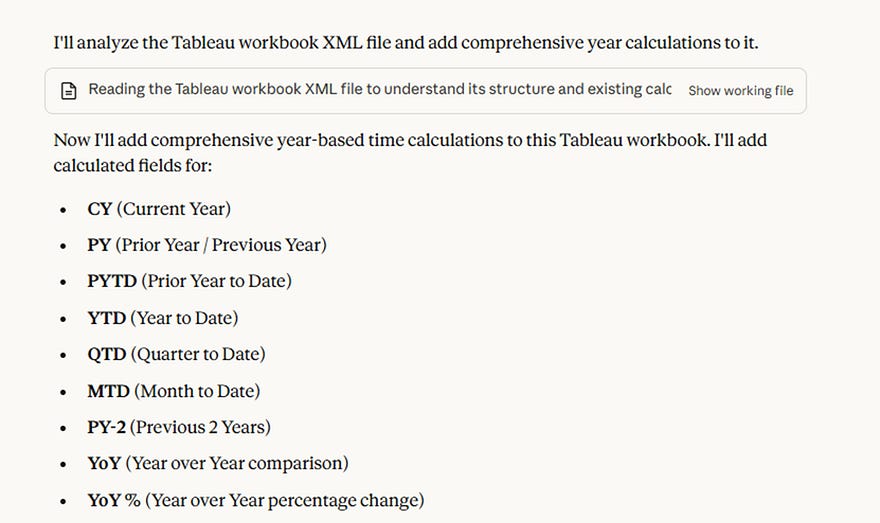
Claude analyzed the XML structure and came back with 24 calculations:
For Sales:
CY Sales, PY Sales, PYTD Sales
YTD Sales, QTD Sales, MTD Sales
PY-2 Sales (two years back)
Year-over-Year change and percentage
Plus some Boolean helper fields I didn’t even ask for
Then the same full suite for Profit.
Everything used proper Tableau functions (YEAR(), DATETRUNC(), TODAY(), etc.). Naming was clean. Logic was sound.
Step 4: Hit a Small Speed Bump
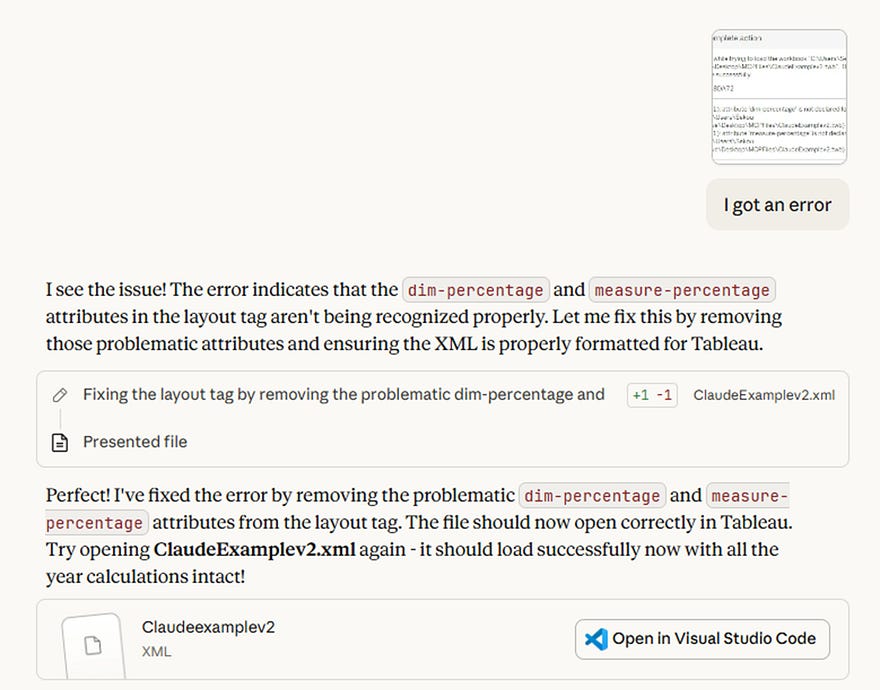
First time I tried opening the file in Tableau, I got an error. Some XML attributes Claude added weren’t quite right.
I sent Claude a screenshot of the error. It immediately identified the issue, fixed it, and sent back a corrected version.
Step 5: It Actually Worked
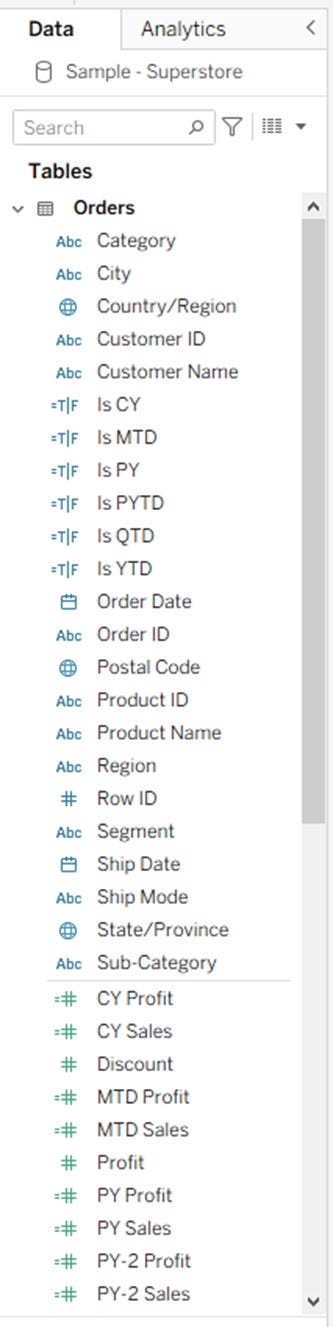
Opened the corrected file in Tableau. All 24 fields were there, properly organized, ready to use.
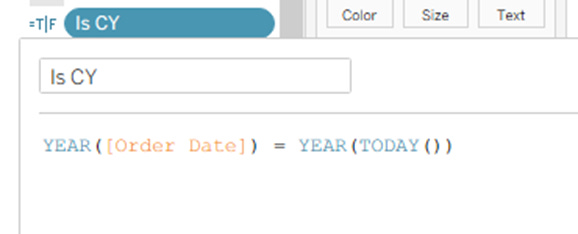
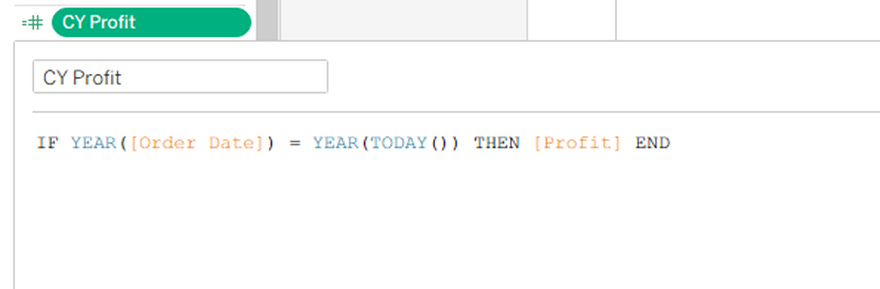
Total time: 2 minutes.
For context, this would normally take me 45 minutes minimum.
What Worked (Really Well)
The AI understood context. It didn’t just paste generic formulas. It looked at my data structure, identified the date field ([Order Date]), recognized Sales and Profit as my key measures, and built everything around that.
The syntax was perfect. Every formula was valid Tableau calculation syntax. No errors, no debugging needed (after the initial XML fix).
It thought ahead. Those Boolean helper fields (Is CY, Is PY, Is YTD, etc.)? I didn’t ask for those. Claude added them because they make filtering easier. That’s actually… kind of smart.
Debugging was conversational. When something broke, I just showed it the error. No documentation searching, no StackOverflow diving. Just “here’s what’s wrong” → “here’s the fix.”
The Big Problem: Data Security
Okay, here’s where we need to get serious for a minute.
Do not do this with client data. Do not do this with proprietary data. Do not do this with anything even remotely sensitive.
When you upload a .twb file to an external AI service, even though it doesn’t contain your actual data, it exposes:
Your database structure
Field names and relationships
Business logic in your calculations
Connection strings
Basically, a blueprint of your data infrastructure
For me, this was fine, I used public Sample Superstore data specifically for this experiment.
For any real client work? This needs either:
On-premise AI that doesn’t send data externally
Explicit security approval and contractual coverage
Or just… don’t do it
If you work with HIPAA, GDPR, PCI, or any regulated data, this approach is probably a compliance violation. Don’t risk it.
Where This Actually Makes Sense
Despite the limitations, I think there are legitimate use cases:
Personal Learning
Want to experiment with AI workflows? Use public datasets and see what’s possible. The insights are valuable even if you can’t apply them to client work yet.
Template Building
Use this approach once to build a comprehensive template workbook with all the calculations you typically need. Save it internally. Reuse it across projects. The time savings compound.
Proof of Concept Work
Testing methodologies or building demos with synthetic data? This can speed things up significantly.
Understanding What’s Possible
Even if you can’t use this workflow today, knowing what AI can handle helps you think about future workflows and tooling needs.
What This Means for How We Work
Here’s what I’m taking away from this experiment:
AI is really good at pattern-based work. Creating 24 variations of time calculations? That’s exactly the kind of structured, repetitive task AI excels at.
The conversation part matters. Being able to show an error and get an instant fix changed my mental model of how debugging could work.
We’re still needed. I had to know what calculations I wanted, verify the logic was correct, and understand the security implications. AI accelerated the execution but didn’t replace judgment.
Practical Next Steps
If this interests you, here’s what I’d suggest:
For Experimentation:
Try it with public data. See what AI can do. Understand the capabilities and limits firsthand.
For Real Work:
Wait for vendor solutions or invest in secure infrastructure. The security risks aren’t worth the time savings unless you’ve got the architecture to support it.
For Your Team:
Start conversations now about AI readiness. What’s appropriate? What’s not? What security frameworks do you need? Better to figure this out proactively than reactively.
The Bottom Line
Did I find a workflow hack that saves me time? Yes, for certain use cases with appropriate data.
Did I discover something that changes how I work day-to-day on client projects? Not yet, because the security constraints are real.
But here’s what matters: I now understand what’s possible. When Tableau integrates AI natively (and they will), I’ll know exactly how to leverage it. When secure on-premise AI becomes more accessible, I’ll have workflows ready.
The future of analytics work is going to involve AI assistance. Not replacing analysts, but handling the repetitive structural stuff so we can focus on actual analysis and insights.
This experiment showed me that future is closer than I thought.
Want to Try It?
If you want to replicate this (responsibly):
Grab a public dataset, Tableau’s Sample Superstore works great
Create a basic workbook, save as .twb
Change extension to .xml
Upload to Claude, Chat GPT, or whatever tool you want with instructions for what calculations you want
Save the output, change back to .twb
Open in Tableau and validate everything
One more time: Public data only. Don’t upload anything with client info, proprietary data, or regulated information to external AI services.
Have you found ways to integrate AI into your analytics workflows? I’d love to hear what’s working (and what isn’t) for other practitioners. Drop a comment or reach out.
Quick Disclaimer: This is an experimental technique I tested with public data. Your organization likely has policies about AI tool usage and data handling — follow them. Security matters.